🎵 Introduction FMOD In Unity: "The Secret Weapon" for Audio

Minh Khoa
Author
Have you ever played AAA titles and wondered: "Why do gunshots sound so satisfying?", "Why does the background music transition so smoothly when you encounter a Boss?" or "Why do footsteps on grass and snow sound so realistic?".
The answer usually lies in two words: Audio Middleware – and the most common name that Unity developers often use is FMOD.
Today, let’s find out together FMOD what it is, why it is called the "secret weapon" of Sound Designers, and when we should use it instead of Unity’s default Audio system! 🚀
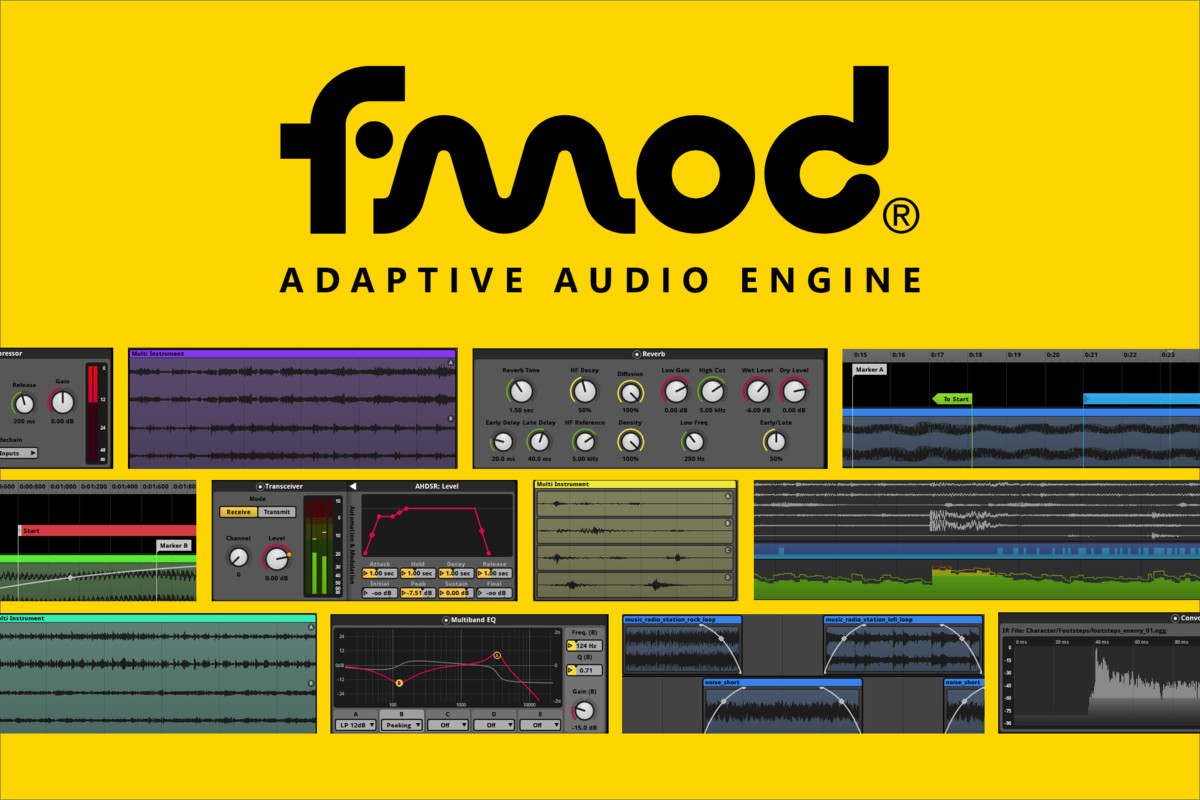 ## 🧐 1. FMOD What Is It, and How Is It Different from the Unity Audio System?
Simply put, FMOD is like an intermediary piece of software. Instead of you dropping the .mp3 or .wav file directly into Unity and using AudioSource to play it, the workflow with FMOD will be as follows:
- Sound Designer works on the standalone FMOD Studio software. They adjust volume, add effects (Reverb, Echo...)and mix the audio.
- They "package" everything and export data files (Bank).
- Programmer (Dev) in Unity only needs to call: "Hey FMOD, play gunshot number 1 for me!" in code. Everything else FMOD takes care of itself.
The money-making advantage of FMOD over standard Unity Audio:
- 🤝 Excellent separation of work: Dev handles Dev work, Sound Designer handles Sound work. No one gets in anyone’s way. When a gunshot needs to be changed, the Sound Designer only needs to replace the file in FMOD Studio and then press Build. The Dev does not need to open Unity to reassign the reference!
- 🧠 Optimized RAM and CPU: If your game has 1000 sound effects, Unity will struggle to manage them. FMOD allows loading/unloading (Load/Unload) audio intelligently by each level, while also automatically "turning off" sounds that are too far away to save CPU.
- 🎛️ Lively" audio (Adaptive Audio): FMOD does not just play static audio. It allows audio to change continuously according to the Parameter (Parameters) passed in from the game.
To see the difference clearly, let’s look at real-world cases and compare the code below! 👇
🎮 2. Real-World Cases & Code Comparison (From Basic to Advanced)
🟢 Basic Level (Basic)
1. Play a simple sound (UI Click, Gunshot)
❌ With Unity Audio: You have to attach AudioSource to the Object, declare a variable AudioClip, and drag-and-drop in the Inspector, which is extremely cumbersome.
public class UnityShooting : MonoBehaviour
{
    public AudioSource audioSource;
    public AudioClip shootSound;

    void Shoot()
    {
        audioSource.PlayOneShot(shootSound);
    }
}
✅ With FMOD: Just a single line of code, no need for AudioSource or cumbersome drag-and-drop. The programmer only needs to know the path (identifier) of the sound effect.
using FMODUnity;

public class FMODShooting : MonoBehaviour
{
    void Shoot()
    {
        // Phát một file âm thanh tại vị trí hiện tại
        RuntimeManager.PlayOneShot("event:/Weapons/Shoot", transform.position);
    }
}
Note: FMOD Studio can automatically mix (random volume and pitch) so that each time the gunshot plays, it still sounds natural, without the code needing to care about it.
🟡 Intermediate Level (Intermediate)
2. Footsteps (Footsteps) multiple materials
Imagine your game has surfaces: Grass (0), Stone (1), Water (2).
❌ With Unity Audio: You will have to manage a lot of (array) different clips and write the random logic yourself, which is exhausting.
public class UnityFootstep : MonoBehaviour
{
    public AudioSource audioSource;
    public AudioClip[] grassSteps;
    public AudioClip[] stoneSteps;
    public AudioClip[] waterSteps;

    public void PlayFootstep(int surfaceType)
    {
        AudioClip[] clipsToPlay = null;

        switch (surfaceType)
        {
            case 0: clipsToPlay = grassSteps; break;
            case 1: clipsToPlay = stoneSteps; break;
            case 2: clipsToPlay = waterSteps; break;
        }

        // Tự chọn random 1 clip trong mảng để tránh bị lặp
        int randomIndex = Random.Range(0, clipsToPlay.Length);
        audioSource.PlayOneShot(clipsToPlay[randomIndex]);
    }
}
✅ With FMOD: All audio arrays and random logic are neatly contained in FMOD Studio. Unity Code only needs to "report" the material parameter variable.
using FMODUnity;

public class FMODFootstep : MonoBehaviour
{
    public void PlayFootstep(int surfaceType)
    {
        // 1. Khởi tạo một phiên (instance) âm thanh
        FMOD.Studio.EventInstance footstep = RuntimeManager.CreateInstance("event:/Player/Footstep");

        // 2. Gắn vị trí không gian 3D
        footstep.set3DAttributes(RuntimeUtils.To3DAttributes(gameObject));

        // 3. Truyền Parameter "SurfaceType" cho FMOD tự xử lý
        footstep.setParameterByName("SurfaceType", surfaceType);

        // 4. Phát âm thanh và tự động dọn rác (Release) khi chạy xong
        footstep.start();
        footstep.release();
    }
}
Do you see the "magic" yet? When the game needs to add a Snow surface (3)surface, developers DO NOT NEED TO TOUCH THE CODE. The Sound Designer only needs to configure it in FMOD Studio and it runs automatically!
🔴 Advanced level (Advanced)
3. Simulating car engine sounds (Engine Sound)
❌ With Unity Audio: You need at least 3 AudioSource (Idle, Medium, High). You have to code the Lerp function yourself (interpolate) the volume back and forth for each AudioSource depending on the engine speed variable (RPM). It still sounds extremely fake.
✅ With FMOD: You initialize the engine sound. Then each frame in the Updatefunction, you just throw the engine speed variable (RPM) to FMOD.
using FMODUnity;

public class FMODCarEngine : MonoBehaviour
{
    private FMOD.Studio.EventInstance engineInstance;
    public float currentRPM = 1000f;

    void Start()
    {
        // Khởi động xe là bắt đầu nổ máy
        engineInstance = RuntimeManager.CreateInstance("event:/Vehicles/Car_Engine");
        engineInstance.start();
    }

    void Update()
    {
        // Liên tục truyền Vòng tua máy theo thời gian thực
        engineInstance.setParameterByName("RPM", currentRPM);
    }

    void OnDestroy()
    {
        // Đừng quên tắt máy khi xe nổ tung nhé!
        engineInstance.stop(FMOD.Studio.STOP_MODE.ALLOWFADEOUT);
        engineInstance.release();
    }
}
4. Interactive background music (Adaptive/Dynamic Music)
FMOD doesn't just play music, it understands Beat (Beat / Tempo). You can ask it to FMOD sync the music for the traversal track and the boss battle track to blend together in a highly cinematic way.
// Đang phát nhạc đi dạo...
FMOD.Studio.EventInstance bgm = RuntimeManager.CreateInstance("event:/Music/BGM_Level1");
bgm.start();

// Đột nhiên... Gặp Boss! Cập nhật ThreatLevel lên 100
// FMOD sẽ đợi một cách thông minh cho hết khuôn nhạc hiện tại
// Rồi "bẻ lái" sang nhạc dồn dập mà không bị giật hay cụt lủn!
bgm.setParameterByName("ThreatLevel", 100);
🎯 Conclusion
If you're just making a small Hypercasual game or Flappy Bird, Unity's default Audio system is more than enough.
But if your project is a little bigger, focuses on an (Immersive)experience, or you're working in a team that has a separate Sound Designer... then FMOD is an invaluable technology investment.
Don't worry about having to learn a new tool at first. Once you get used to it, you'll find that your code architecture is 10 times more relaxed, and the audio quality feels like magic! 🎧✨
Have you ever tried using FMOD in any project yet? Do you have any questions about configuring the code? Leave a comment below! 👇