How to split Addressable groups LiveOps for operation or hot update.

Minh Khoa
Author
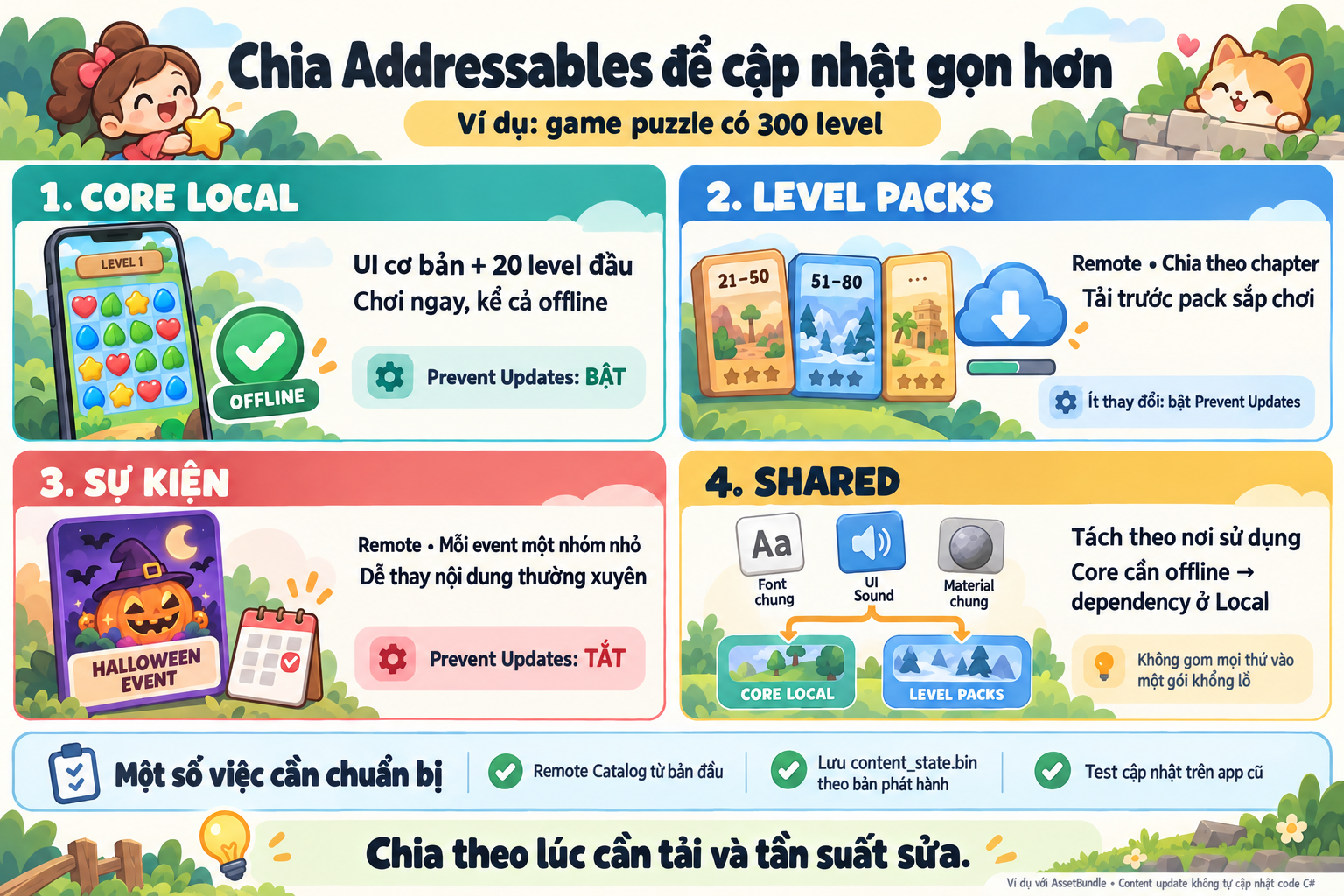 A puzzle game has 300 levels. Art changes one background, but the update makes players download a large content pack.
The problem may lie right in how I package it: unrelated items are bundled together, so changing one part ends up forcing the whole pack to be downloaded again.
I usually start with two questions: when does the player need this asset, and will I change it often?
1. First, distinguish Group and Bundle
Simply put:
-
Group is where assets are gathered and rules are set in the Editor.
-
Bundle is the content pack created after build.
One Group can create multiple bundles. Pack Together group together; Pack Separately split by asset entry; Pack Together by Label group by the same label combination. So, {chapter_1} and {chapter_1, HD} can become two different packs. Unity — Bundle Mode.
For beginners, splitting each chapter or event into a separate Group is often easier to verify.
2. An example split for a 300-level game
This is one way to start, not a mandatory formula:
| Group | What does it contain? | Where is it placed? |
|---|---|---|
| Core | UI base content, tutorial, first 20 levels | Local |
| Level Packs | Levels 21–50, 51–80… with the chapter’s theme | Remote, split by pack |
| Events | Halloween, Tết, event-specific banners and images | Remote, one small group per event |
| Shared | Font, material, audio, or texture that is truly shared | Split according to usage needs |
Core lets the player open the game and start playing right away. The number 20 is only an example; you should keep enough content for the first session, then preload the next pack.
If events change often, keep the packs small. Chapters that change less often can be packed into larger bundles, but you still need to measure download size and RAM.
As for Shared, don’t turn it into a catch-all repository. If an offline part depends on an asset, that asset must also be available locally. Resources used only for events do not need to be included in the installation package.
Before release, check dependencies and duplicate bundled assets with Analyze/Build Layout. Addressables does not automatically eliminate every case of duplicate resources. Unity — Analyze.
3. Prevent Updates does not mean “prohibit changes”
This setting name is quite easy to misunderstand.
Enable Prevent Updates: is suitable for Local or content that changes infrequently. When running the content update check, modified assets are moved to a new Remote Group. The updated catalog points to the replacement version; unchanged parts continue using the old bundle.
Disable Prevent Updates: affected bundles will be rebuilt. This fits small events, frequent changes, and accepting that that pack will be downloaded again.
Do not change this setting during a content update cycle; decide again when doing a full build. Unity — Content update settings.
For example, if the level 12 background in Core Local is wrong. I can still publish a replacement through Remote, without directly editing the file in APK/IPA. The original version still remains in the installation.
But don’t interpret that as “if I change one image, only that exact image is always downloaded”: related dependencies can make the patch pack larger. Unity — Content update examples.
4. Prepare the update path from the first release
If you plan to do live-ops according to the standard workflow, you should prepare:
-
Remote Catalog: enable
Build Remote Catalog, configure the path, and upload catalog/hash to the server. The catalog is like a signpost board, helping the app know where the new assets are located. Unity — Remote distribution. -
Save
addressables_content_state.bin: separately for each full release and each platform. This is the baseline for creating content updates for the correct released app version. Do not overwrite it with a test build file. Unity — Update overview. -
Test with the old app: install the released version and then try to receive new content. Check a machine without cache, a weak network, and opening the game offline as well.
Finally, Addressables updates content, not C code automatically#. A new prefab that uses a component the old app does not have cannot be solved simply by uploading the asset to the server. Unity — Script compatibility.
For casual games, I prioritize: enough content to play right away, the rest downloaded gradually, and frequently changed items kept in small packs. Then look at the actual patch size to make adjustments, instead of trying to find a Group split that is correct for every game.