Draw Calls and Overdraw in Unity: understand quickly, optimize correctly

Minh Khoa
Author
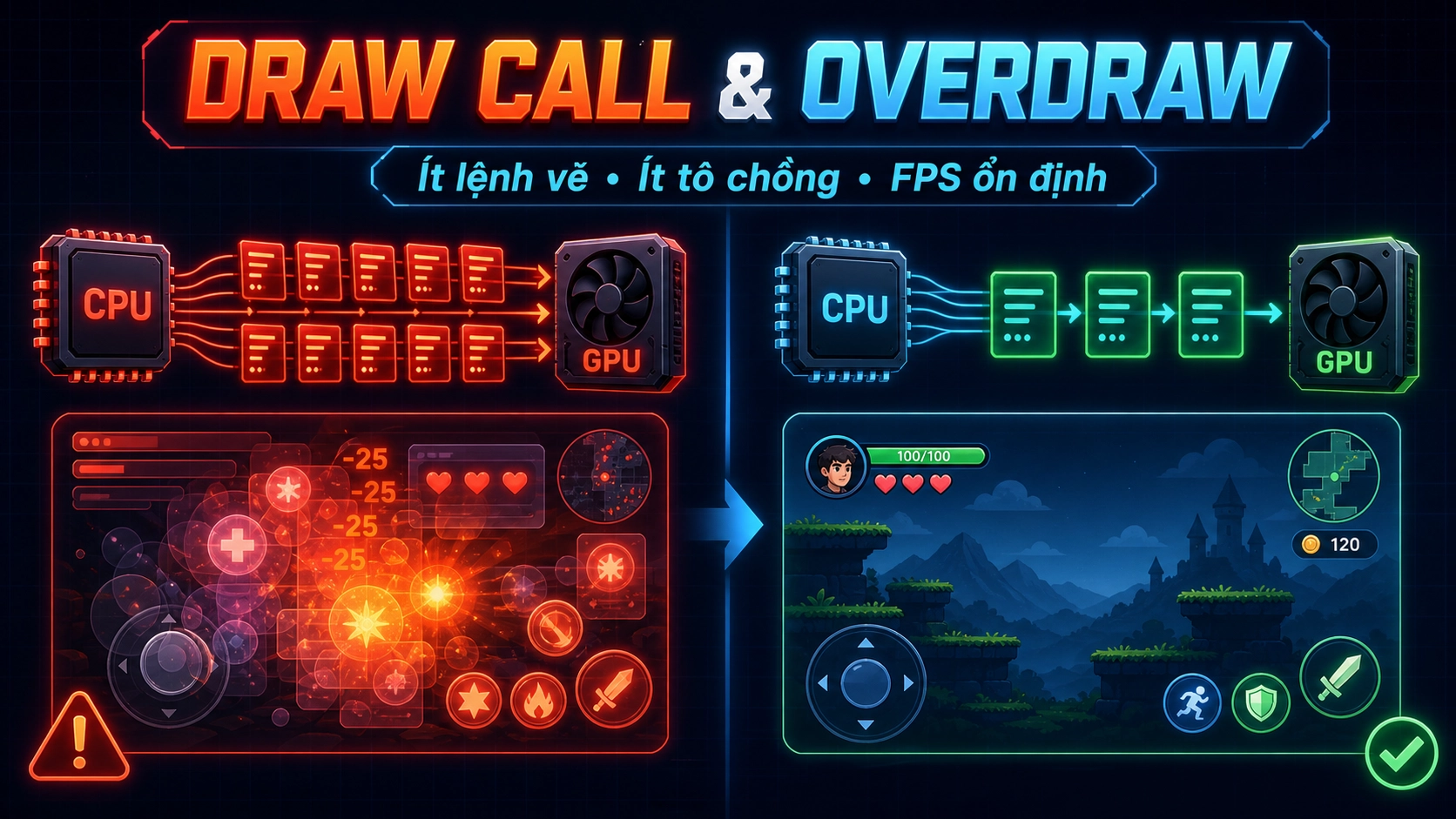 When the game lags FPS, two common culprits are too many Draw Calls and overly high Overdraw. They are related to rendering, but they are two different issues.
What is a Draw Call?
A Draw Call is a command that CPU sends to GPU request drawing one object or a group of objects.
For example, a level has 100 trees:
- Each tree uses a different material: this can generate many Draw Calls.
- The trees share the same mesh and material and enable GPU Instancing: Unity can draw many trees with fewer commands.
Draw Calls do not depend only on the number of GameObject. Changing the material, shader, texture, pass, or render state can also make Unity create additional draw commands.
What is the harm of a high Draw Call count?
Each command needs to CPU prepare data and then send it to GPU. When there are thousands of small commands:
- CPU render preparation takes a lot of time.
- FPS decrease even though GPU it has not run at full capacity.
- Stuttering is easy to appear on mobile or low-spec machines.
How to reduce Draw Calls
- Let multiple objects share the same material.
- Use Sprite Atlas for sprites and UI.
- Enable GPU Instancing for identical objects.
- Use Static Batching for non-moving environments.
- Enable SRP Batcher if using URP or HDRP.
- Avoid creating many material variants that differ by only a small value.
- Use LOD and Occlusion Culling so unnecessary objects are not drawn.
For example: 200 rocks sharing the same mesh and a material suitable for GPU Instancing are better than 200 rocks with 200 separate materials.
Don't try to reduce Draw Calls by merging the entire map into one huge mesh. This can make culling less effective and cause Unity to draw a large area just because a small part is visible.
What is Overdraw?
Overdraw occurs when a pixel on the screen is drawn multiple times in the same frame.
For example, at the same position there are:
- Background.
- A transparent smoke
- Fire effect.
- Health bar.
- A UI transparent panel.
That pixel may be GPU processed five times, but the player only sees the final result.
Overdraw is often high in:
- Smoke, fire, and magic particles.
- Sprites with many transparent areas.
- UI overlapping panels and images.
- Full-screen effects.
- Transparent shaders.
What is the harm of high Overdraw?
Overdraw increases the number of pixels GPU that must be processed:
- GPU it takes more time to fill the same area.
- Mobile devices run hotter and use more battery.
- FPS performance drops sharply at high resolutions.
- Particle or UI that look simple can still be very heavy.
How to reduce Overdraw
- Reduce the number of particles and particle size.
- Limit multiple overlapping transparent layers.
- Trim sprites closely to the shape instead of using a quad with too large a transparent area.
- Turn off completely UI unused panels.
- Avoid placing many semi-transparent Images covering the whole screen.
- Prefer opaque shaders or alpha clipping when appropriate.
- Reduce unnecessary post-processing effects, especially on mobile.
- Check Overdraw View in Scene View to find areas that are overpainted.
For example, 50 large smoke particles covering the entire screen are often heavier than 200 small particles that appear only in a narrow area.
How are Draw Call and Overdraw different?
| Issue | Main burden | Example |
|---|---|---|
| High Draw Call | CPU sending too many commands | 500 objects using many materials |
| High Overdraw | GPU painting one pixel many times | Smoke, effects, and UI overlapping transparency |
A game may have few Draw Calls but still high Overdraw. For example, a particle system may need only a few Draw Calls, but large particles overlapping to cover the screen still cause GPU overload.
Check in Unity
- Open Game View → Stats to see Batches and SetPass Calls.
- Use Frame Debugger to know what Unity is drawing.
- Use Profiler to identify whether the bottleneck is in CPU or GPU.
- Enable Overdraw mode in Scene View to find overpainted areas.
Easy-to-remember rule:
Draw Call: do not send too many draw commands. **Overdraw: do not paint the same pixel too many times.
Proper optimization is to measure first, find the bottleneck, and then fix it — not to reduce every number at all costs.
Không thể tải ảnh bên ngoài