Anti alias & Vsync

Minh Khoa
Author
Anti-Aliasing (AA - Anti-aliasing)andVSync (Vertical frame synchronization).
In any game, visuals are always the first thing that catches the player’s eye. Without anti-aliasing, models look like they were made of "stone age" stuff; if you use the wrong technique, you waste resources; if you don’t control VSync, the machine gets as hot as a microwave or the image tears to shreds. This article will help you understand these mechanisms clearly and break them down.!
🎨 1. Anti-Aliasing (Anti-Aliasing)
Why do "jaggies" appear (Aliasing)?
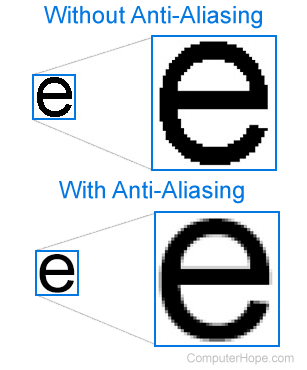
Our screens are made up of square pixel points. When displaying diagonal or curved lines, these square pixels cannot fill them smoothly (they can only go horizontally - vertically), creating extremely annoying rough step-like edges. This display error is calledJaggies (Jaggies).
To fix this problem,**Anti-Aliasing (AA)**algorithms were created to fool the eye by mixing in intermediate-colored pixels along the edges so that from a distance it looks smoother.
4 "Bosses" That Solve Jaggies in Unity (Notably: URP & HDRP)
When working, you will encounter the following 4 types, make sure you understand them:
🟢 MSAA (Multisample Anti-Aliasing)
- **Mechanism:**A hardware-based solution. Simply put, it renders the EDGES of 3D objects at a higher quality and then calculates the correct color down to your native resolution.
- Characteristics:Works extremely smoothly withForward Rendering (A common rendering mode on Mobile). It does not apply to textures, only to mesh edges, so it does not blur pre-drawn images on objects.
- Senior advice:It isthe ultimate weapon for Mobile Games URP. Turning on MSAA 2x or 4x in the
Universal Render Pipeline Assetconfig is enough to keep the image clean and easy on the eyes. It is taboo to enable MSAA when usingDeferred Rendering.
🔵 FXAA (Fast Approximate Anti-Aliasing)
- Mechanism:It is aPost-processing (post-processing - effect)Render it first, then add it in afterward
- **. It analyzes the whole rendered screen to see where the boundary edges are, then automatically softens them instead of doing complex math for the mesh, which is tiring.**Characteristics: (Uses the least resources, extremely cheap. In return: once you blur it, the whole scene becomes hazy).
- even the nice image details inside the model are slightly blurred tooSenior advice: low-end A way to preserve performance on
/ Mobile or 2D pixel art games that like to blur the screen. (🟠 SMAA Anti-Aliasing)
- Subpixel MorphologicalMechanism: (A massively upgraded version of FXAA Post-processing)it is also
- **. SMAA detects diagonal and curved edges much more intelligently to target them precisely without distorting the whole screen.**Characteristics:
- **A little heavier than FXAA, but blurs less, with sharper, cleaner edges.**Senior advice: PC/Console Suitable for (mid-range and games that do not want MSAA. URP Commonly used on).
PC (🔴 TAA Anti-Aliasing)
- TemporalMechanism:
- Instead of focusing on a single frame, TAA collects color data from PREVIOUS FRAMES, analyzes the differences, and combines it with the current frame to compensate for missing image corners.Characteristics: (Extremely POWERFUL anti-aliasing. Fixes flickering issues very well) Flickeringof thin lines such as fences, cables, hair. BUT because it uses old frames to overlay new ones, when a character turns quickly it leaves a little "soul" called the (Ghosting).
- GhostingSenior advice: HDRPThe true love of
💡 , AAA games aimed at realism.! Practical tip: IF THE CHOICE IS YOURS, enable hardware MSAA first Post-processing Only touch! AA when you really have no other option to do so at all before removing it UI Canvas into the Render Post Processing layer.
 https://www.youtube.com/watch?v=-bhRrSBCxVQ
https://www.youtube.com/watch?v=hqi0114mwtY
⚡ 2. VSync (Vertical Synchronization - Vertical Synchronization)
The nature of VSync
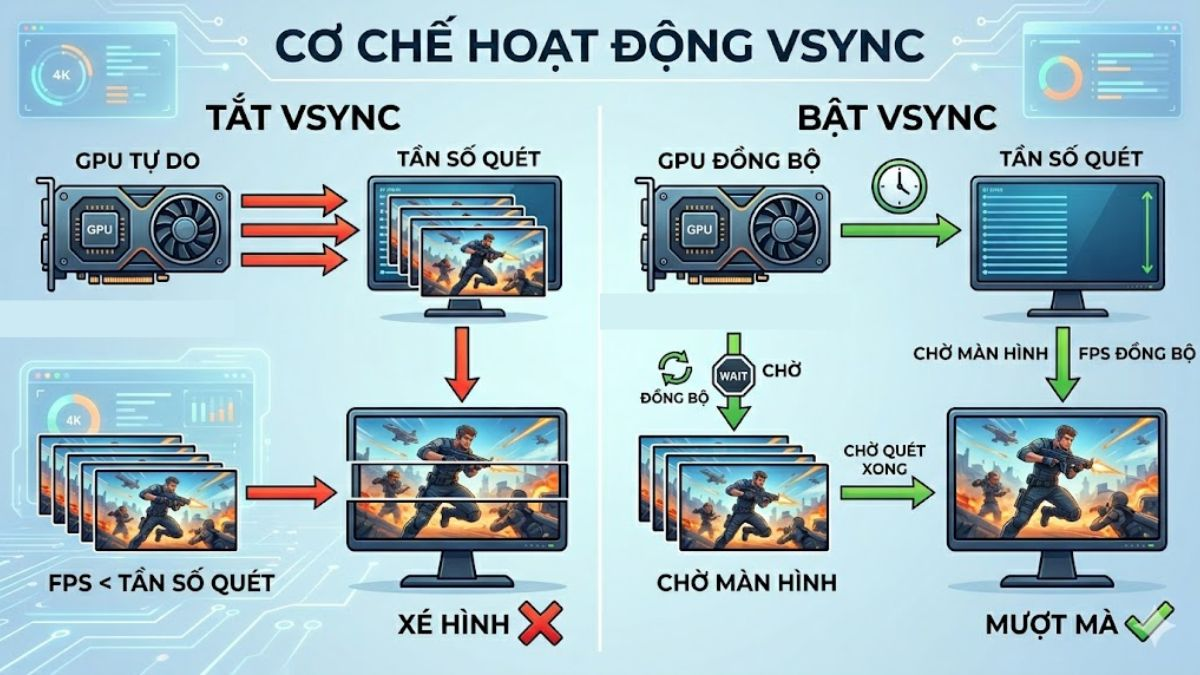
Computer/phone screens usually have a fixed refresh rate (for example, 60Hz means refreshing 60 times per second). Unfortunately, the Graphic Card (GPU) produces frames at an arbitrary speed (where there's no UI running at 100fps, where it’s on fire and sputtering along at 43fps).
When GPU you send out a new image BUT IT DOES NOT MATCH the screen’s refresh rhythm (The screen is displaying half of the old image, with the upper half of the new image overlaid on top), you will see the phenomenon of**Screen Tearing (Image tearing)**that’s quite annoying.
**VSync appears to act like a sheriff:holding a gun and pointing it at GPU saying"Take it slow, wait until the screen finishes displaying before throwing the new frame out here!. So no matter how good the Game Speed (FPS) is, it gets shackled to the Screen Refresh Rate.
 ### Mechanism of Benefits - and Drawbacks
- When VSync = ON (On):
- **Immediate benefit:**easy on the eyes, no more ugly split-tearing image defects. The player's machine is also very COOL AND QUIET because GPU it doesn't have to hunch over rendering redundant extra frames.
- **Side effect:creates the condition ofInput Lag (input delay)**slightly due to the process of inserting waiting in between. Critical for Esport games (FPS shooters, LoL that need instant input). Moreover, if a weak machine can't reach 60FPS... it will force FPS you to drop straight down to 30 FPS.
- When VSync = OFF (Off):
- **Benefit:**mouse-movement responsiveness experience - extremely responsive button presses, suitable for games Try-hard. The frame threshold crosses the wall (120 - 240 FPS depending on the machine's power).
- **Side effect:**the machine runs at Full Load, 100% of resources CPU/GPU even if it is only rendering... the game's Setting interface! (System optimization is lacking).
Practical Coding in Unity
You can adjust VSync through C# via some script attached at the Initialization of the Core Game:
// Đóng cửa VSync
QualitySettings.vSyncCount = 0;

// Khoá FPS theo Vsync (Số 1 nghĩa là 1 sync mỗi vblank)
// Ví dụ màn 60 Hz -> FPS bị khoá 60 FPS
QualitySettings.vSyncCount = 1;

// Vô cùng quan trọng: Nếu TẮT Vsync, PHẢI set Target Frame Rate để khóa trần GPU lại !
Application.targetFrameRate = 60;
💡 The Unwritten Rule of "Senior King Dev":
- For mobile work: VSync must be TURNED OFF (
QualitySettings.vSyncCount = 0**)**and MANUALLY lock the frame rate throughApplication.targetFrameRate = 30(or 60/120 depending on the device configuration). Explanation: Unity manages VSync on phones extremely poorly; the OS has much better built-in device limits. Android/iOS better by far. Turning off VSync helps the app use as little battery heat as possible. - Working on PC/Console: Always provide a VSync Checkbox in the Game’s Options section. NEVER hard-pin this in code! The default can be ON for single-player scenic games that let you relax, and default OFF for games Fast-paced shooters.
🎯 Summary for You to Review
- Aliasing makes games look cheap; clear it withMSAA. When the machine cries from the load, drop to usingFXAA/SMAA. When making a game Console/PC super beautiful, then useTAA.
- VSyncis the way to rein in a wild horse GPU. If you’re playing a game with tearing and go looking for render bugs, that’s pretty bad—go into Options and turn on Vsync. If you want a mobile game to live healthily and keep battery for a long time, remember VSync=0 & TargetFrameRate=60!